Steps and subtasks
The difference is the date. When to use each, and how a step becomes a subtask.
Inside a task you can break the work into smaller items. Those items have two states, and one thing separates them: having a date or not.
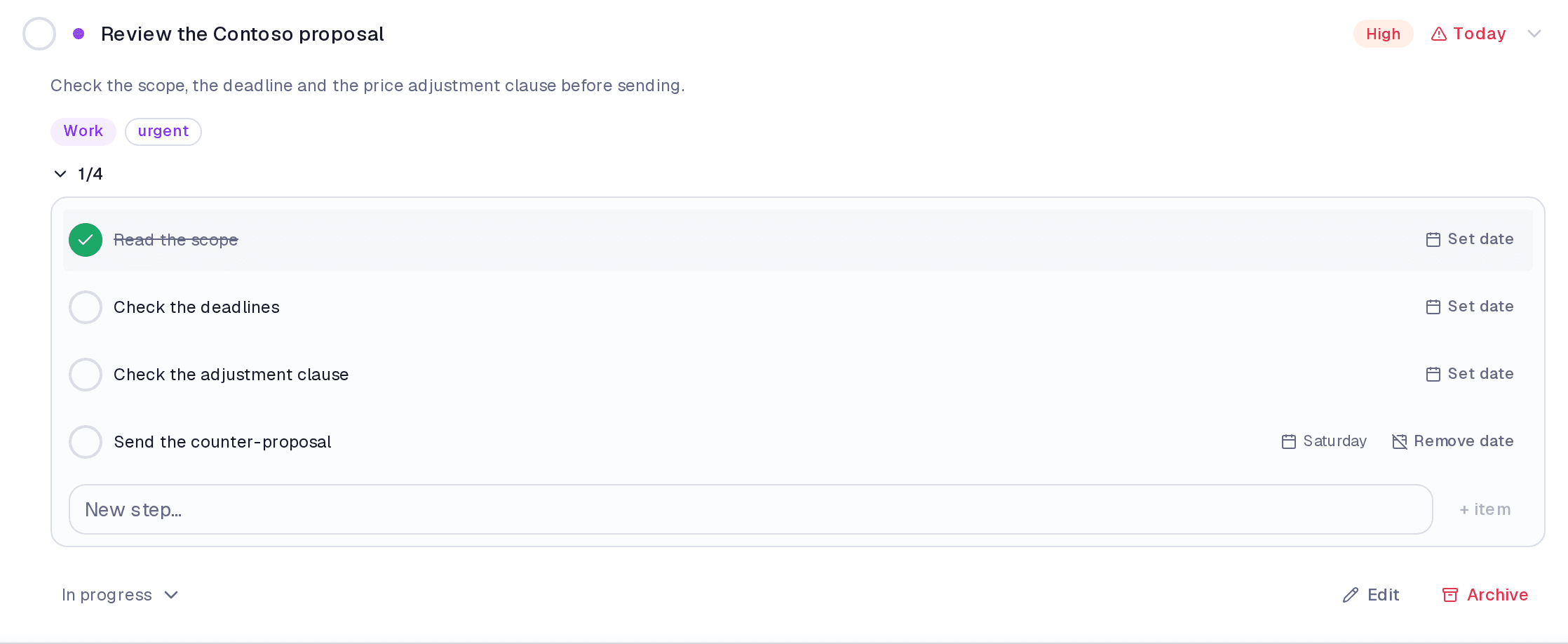
- Step — a checklist item. It lives inside the task, has no date, priority, or category of its own, and never shows up anywhere alone.
- Subtask — a step that got a date. It takes on a life of its own: it appears in your list, enters the calendar, and accepts a priority, a category, and tags.
How to add a step
- Open the task and find the Steps and subtasks section.
- Click + item.
- Type the text in the New step… field and confirm.
Turning a step into a subtask
- Open the step's menu.
- Choose Set date and pick the day.
That is it: the item becomes a subtask and starts appearing in your task list, labelled in {task name} so you do not lose track of where it came from.
The way back exists: Remove date returns the subtask to being a step.
Where it lives
The Tasks screen, inside each task. The counter next to the title — 1/4, for instance — counts steps and subtasks together.
Limits and plans
Steps and subtasks together go up to 50 per task, on any plan. It is a sanity ceiling against lists nobody can read, not a commercial limit: hitting it does not open an upgrade offer.
Common questions
I completed the task and it had open subtasks. What happens? The app asks. You choose between Complete all, Keep them open, or Reschedule to tomorrow — and you can tick Remember my choice so it stops asking.
I deleted the task. Do the items go too? Steps always go along — they do not exist outside the task. For subtasks the app asks whether you want Only the task or Delete all.
Can I nest a subtask inside a subtask? No. The hierarchy is one level deep on purpose: more depth turns a task list into an org chart.
Updated on August 26, 2026