Recurring tasks
For what repeats the same way every time — without recreating the task every week.
A recurring task is a template. It is not a task: it is the rule that produces a task each time the date comes around.
Creating one
- On the Tasks screen, go to the Recurring tab.
- Click New recurrence.
- Pick the Frequency: Daily, Weekdays, Weekly, or Monthly.
- For weekly, tick the days; for monthly, choose the day of the month.
- Set an end date, if there is one, and click Create.
The time is optional and behaves as it does on ordinary tasks: with it, each occurrence appears on the calendar and can fire an alert.
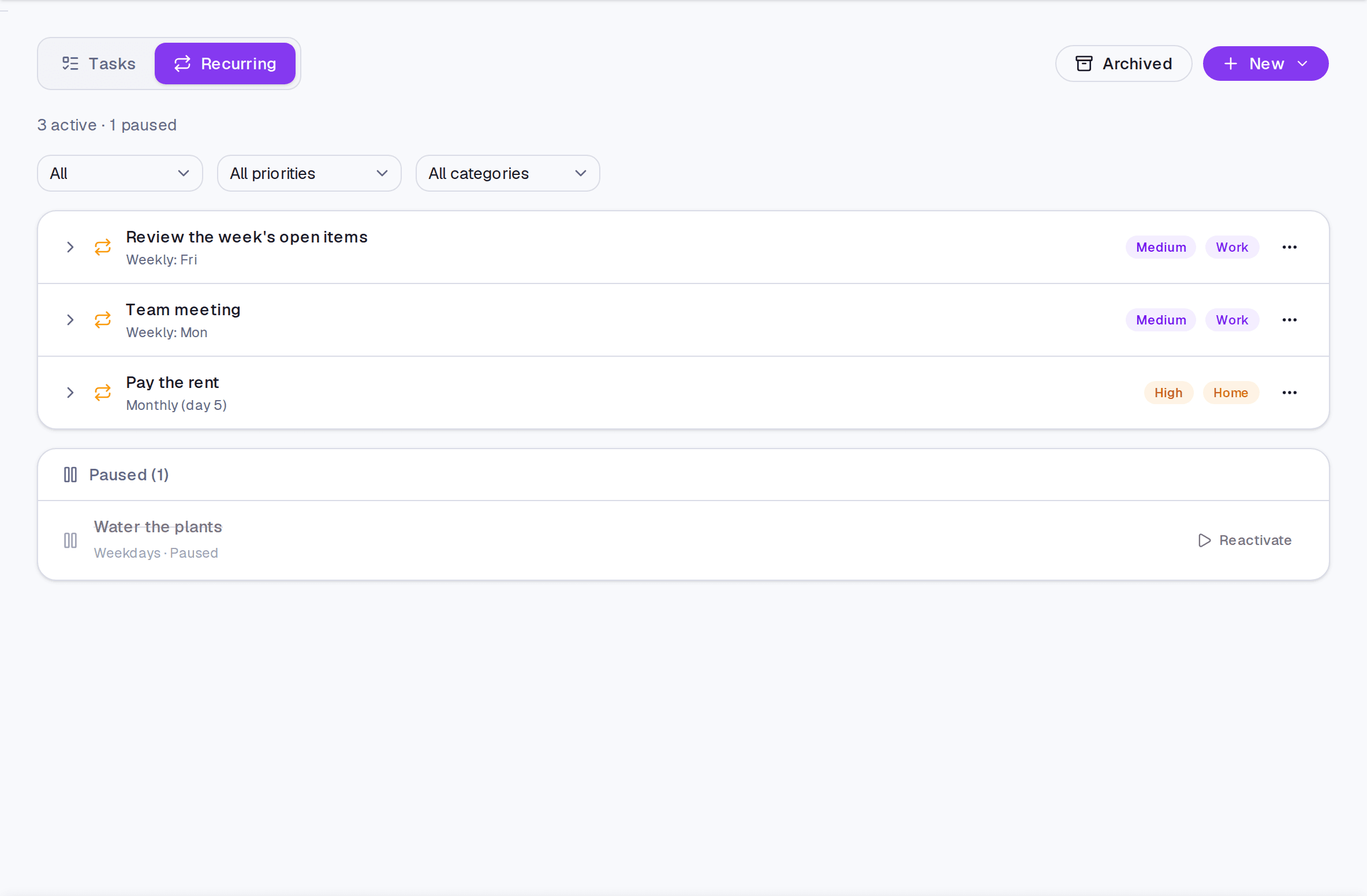
Pause instead of deleting
A recurrence that makes no sense this month can be paused. It stops producing occurrences and comes back with Reactivate, keeping its history. Deleting is for when the routine is over for good.
Where it lives
The Recurring tab, inside Tasks. Occurrences appear in the normal list alongside everything else — and the Recurring filter decides whether they show, hide, or appear on their own.
Limits and plans
Common questions
Recurring task or habit? A recurring task is work with a deadline — pay the rent, send the report. A habit is behaviour you want to keep, and what matters there is the streak, not the delivery.
I completed today's. Did tomorrow's disappear? No. Each occurrence is independent.
I changed the recurrence's time. What about existing occurrences? The template applies to the next ones. To change a single day, edit that occurrence.
Updated on August 26, 2026