List or board
Two ways to see the same tasks — and when each one helps.
List and Board show exactly the same tasks, with the same filters. What changes is the shape.
- List — vertical, dense, good for reading the day and ticking things off.
- Board — columns side by side, good for moving things between states and seeing where work piles up.
Switching
- On the Tasks screen, use the layout switch in the header.
- Choose List or Board.
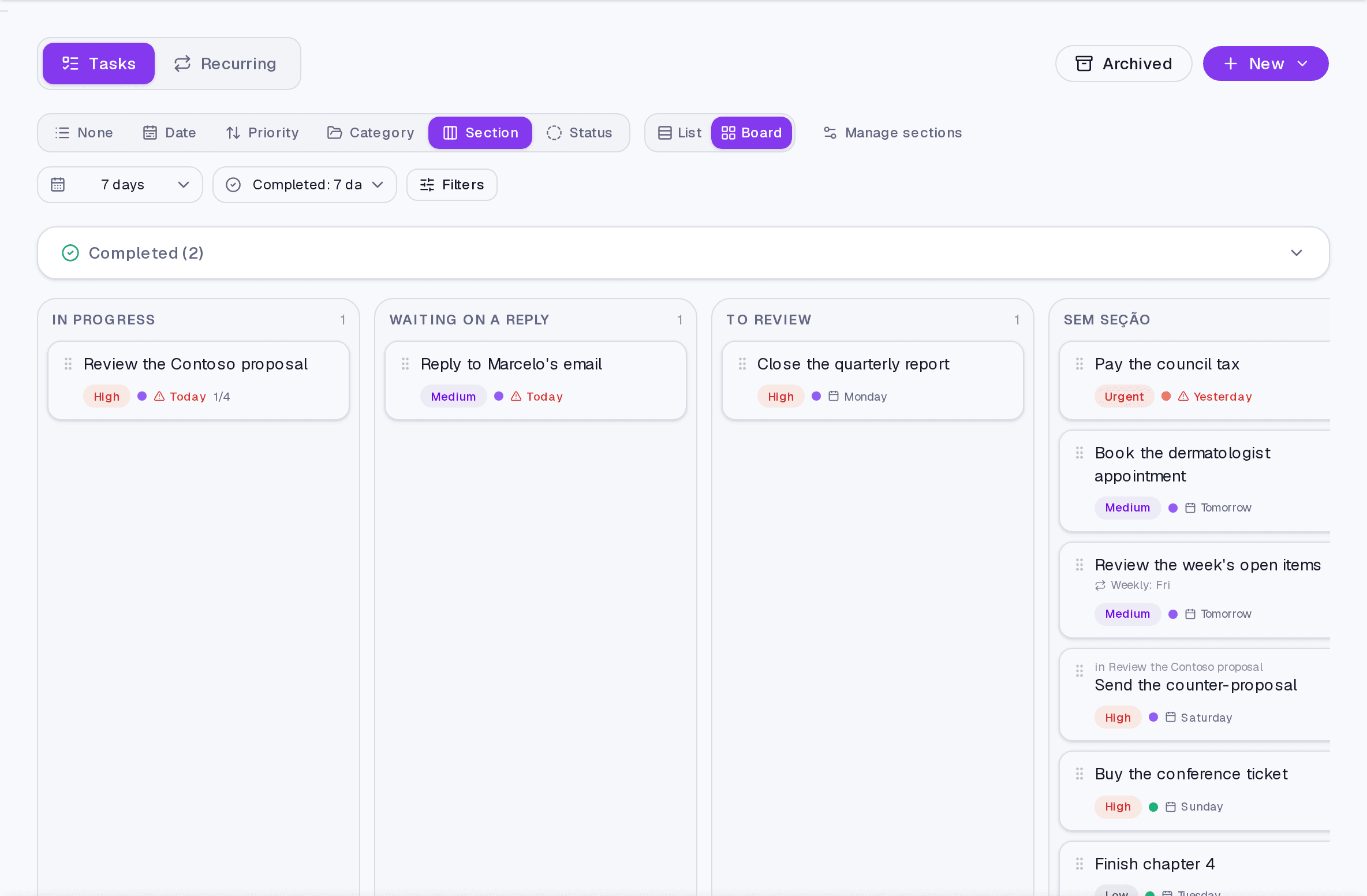
The board's columns
The board's columns are the active grouping, not a fixed field. Group by status and the columns are the statuses; group by section and the columns are the sections. Dragging a card to another column changes that field on the task — dragging it to "Completed" genuinely completes it.
Where it lives
The Tasks screen header, next to the filters. When the columns do not fit, the board scrolls horizontally.
Common questions
Is the choice remembered? Yes, within the Tasks screen. Filters and grouping keep applying when you switch layouts — it is the same list, seen differently.
Can I drag in the list too? Yes, both to reorder and to move between groups.
Updated on August 26, 2026