Tour of the screens
What each navigation item does, in one line each.
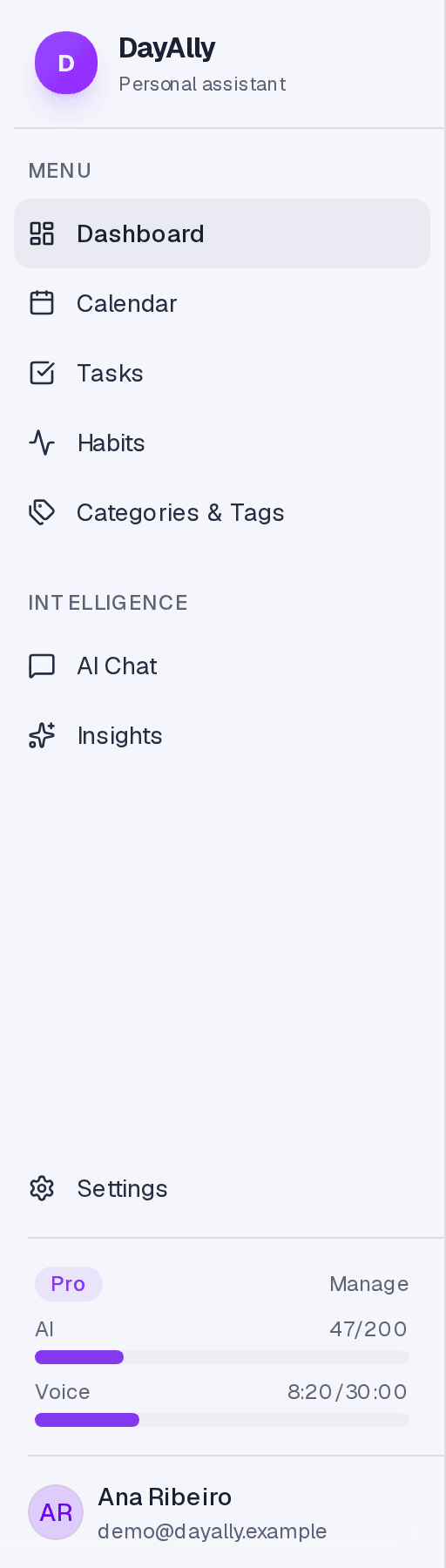
The main navigation sits in the sidebar on desktop and in the bottom bar on mobile.
The screens
Dashboard — the summary of your day: a timeline with events and timed tasks, what comes next, habit health, and quick capture.
Calendar — your month, week, or day, with the events imported from connected calendars.
Tasks — the full list, with filters, grouping, a board view, and the recurring tab.
Habits — what repeats, with today's check-in, streaks, and history.
Categories — where you create and edit categories and tags.
AI Chat — the full conversation with the assistant, with history.
Insights — numbers and summaries about how your weeks have been going.
Settings — profile, preferences, AI assistant, alerts, integrations, and subscription.
What is always within reach
At the top of any screen you have search (Ctrl+K), alerts, light/dark theme, and your profile menu. The question mark icon opens the help article for that specific screen.
Limits and plans
AI Chat and Insights appear marked in the navigation when your plan does not include them. They stay visible on purpose: hiding a whole screen makes the app look smaller than it is.
Common questions
Can I collapse the sidebar? Yes, with the button in the top left corner. On mobile there is no sidebar — the navigation is the bottom bar.
What does search find? Tasks, recurring tasks, events, habits, conversations, and articles in this help.
Updated on August 26, 2026