Month, week, and day views
Which view answers which question you are asking the calendar.
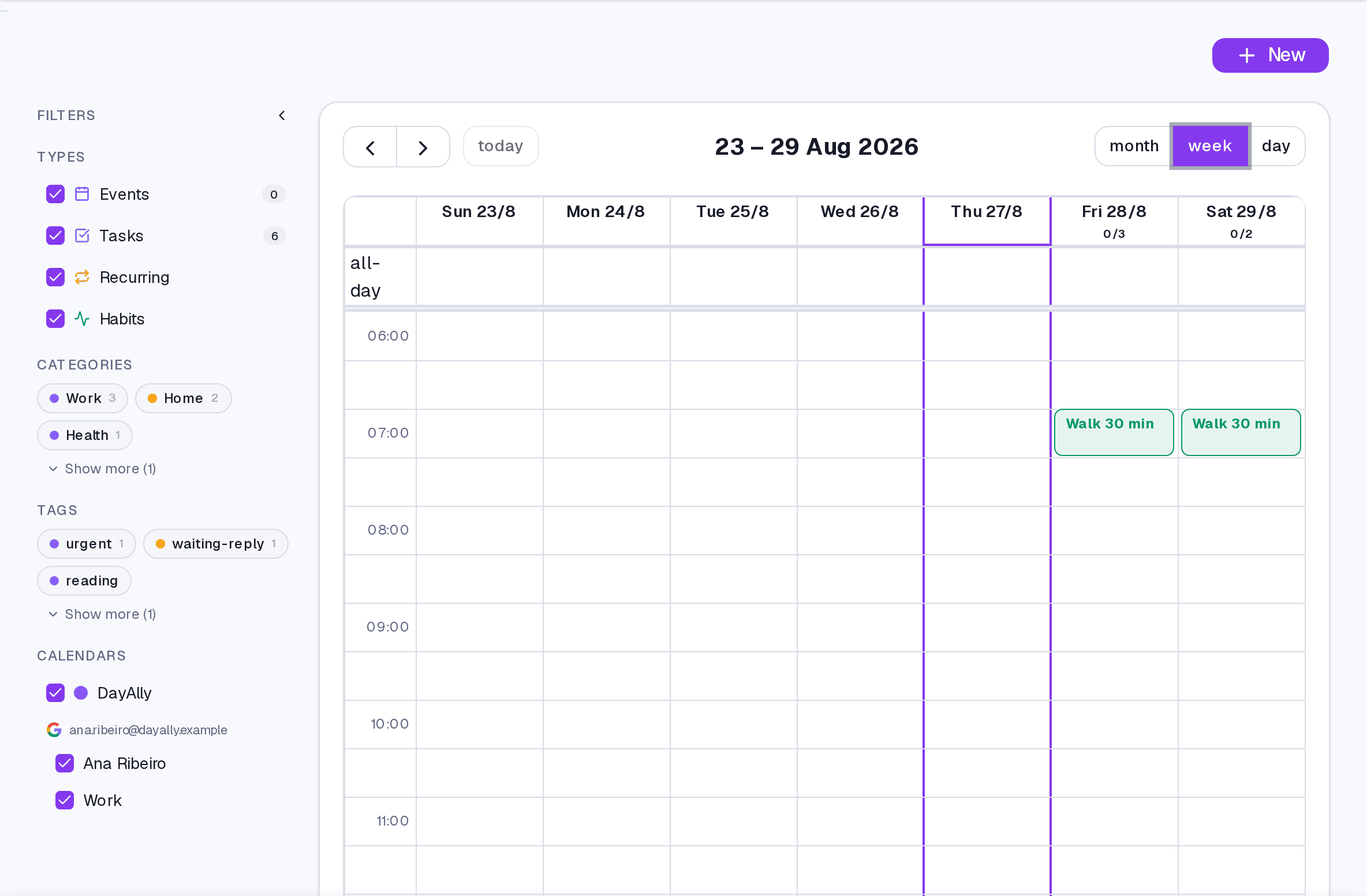
The three views answer different questions:
- Month — "how is the month looking?" Good for density and for spotting free days.
- Week — "where do I fit this in?" This is the view with hours, where the gaps show.
- Day — "what does today actually look like?" A single column, hour by hour.
Switching
- On the Calendar screen, use the view switch at the top.
- Move between periods with the arrows, and come back with Today.
To fix the view the calendar always opens with, go to Settings → General → Calendar view. That is also where week start — Sunday or Monday — and time format live.
What shows on the calendar
Events you created, events imported from connected calendars, and tasks that have a time. A task with only a date and no time does not occupy an hour slot — it shows on the day, not at a point in it.
Where it lives
The Calendar screen. Clicking a day opens that day's detail with everything it holds.
Limits and plans
The views are in any paid plan. Importing external calendars requires Essential or Pro.
Common questions
Why is my task missing from the week view? It probably has a date but no time. Add the time and it takes its place in the day.
Can I hide an imported calendar? Yes, in the Calendar's filter sidebar. That only controls what you see — nothing is deleted.
Updated on August 26, 2026