Connect Google or Microsoft
How to bring your existing calendars into DayAlly.
Connecting an account brings your calendars' events into DayAlly's Calendar. It is the step that keeps the calendar from being empty on day one.
Connecting
- Go to Settings → Integrations.
- Click Connect Google or Connect Outlook.
- Authorise access on the provider's screen.
- Back in the app, pick which calendars from that account you want to see.
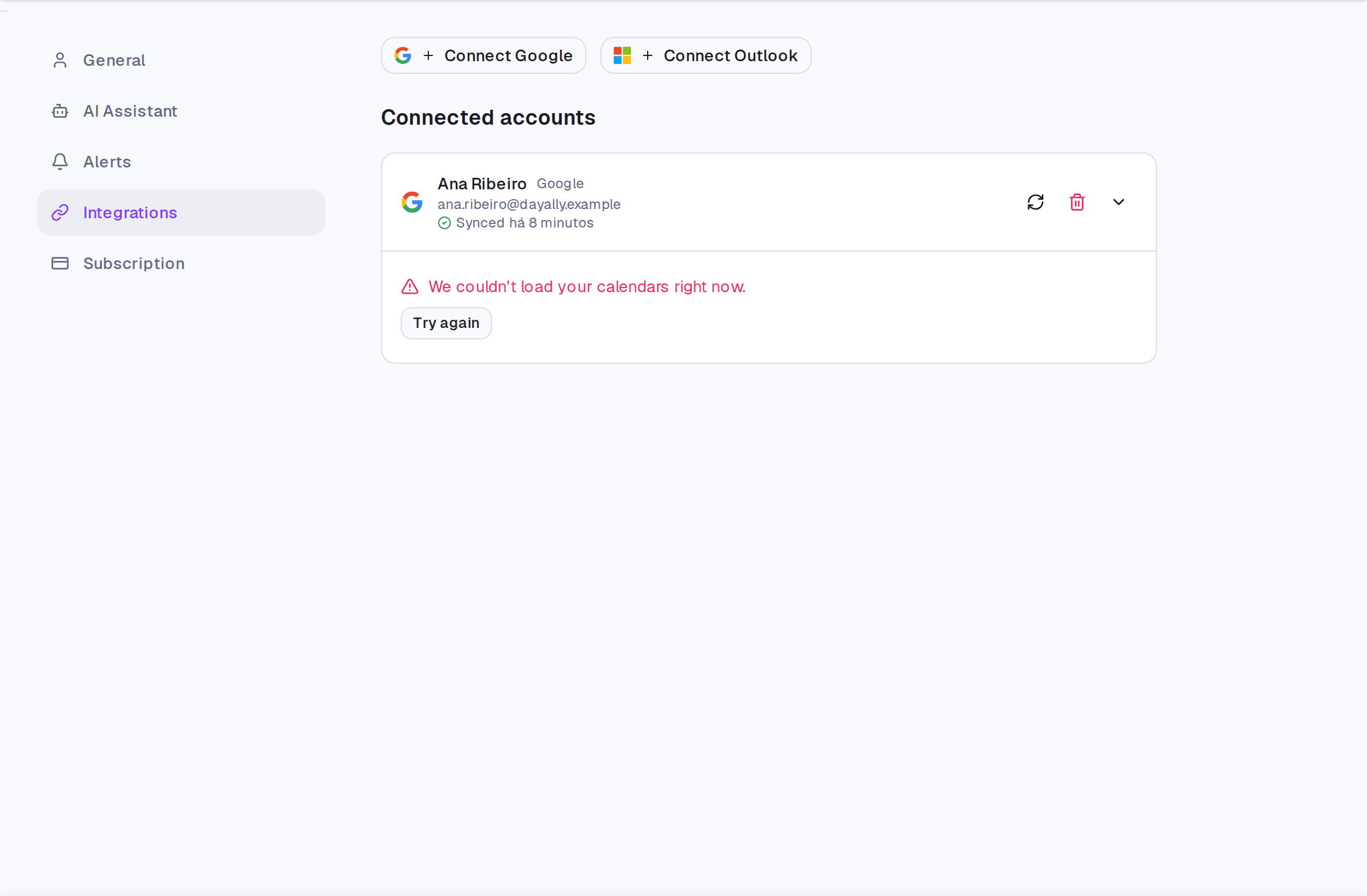
You can connect more than one account, including from both platforms.
Syncing
DayAlly checks for changes every 15 minutes. To skip the wait, use Sync now on the connection card — which also shows when the last successful sync happened.
Where it lives
Settings → Integrations to connect and disconnect. To pick which calendars show day to day, use the Calendar's filter sidebar.
Limits and plans
Common questions
Will DayAlly touch my Google calendar? No. The permission requested is read-only, full stop. The app does not create, edit, or delete anything at the source.
I disconnected. What happens? The events imported from that account are removed from your Calendar. Nothing is touched in Google or Outlook.
I connected and nothing appeared. Check that the account's calendars are ticked in the Calendar sidebar, and that the last sync did not report an error. If it did, Sync now usually settles it — the common case is expired access, which asks you to reconnect.
Updated on August 26, 2026