Adjusting one item's alert
When the default does not suit that particular task — customise or silence it there alone.
Default alerts apply to every task, event, and habit. But there is always the exception: the appointment that needs a day's notice, the recurring meeting that needs no warning at all.
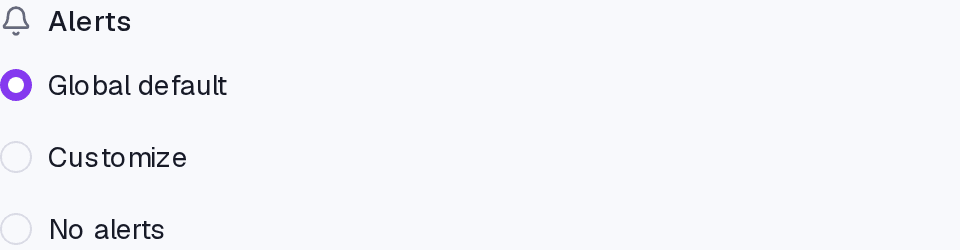
When editing a task, an event, or a habit, the Alerts field offers three routes:
- Global default — follows what is in Settings. It is the starting state and what you want most of the time.
- Customise — sets lead times for that item alone.
- No alerts — silences that item without touching the default.
Customising
- Edit the task, event, or habit.
- In the Alerts field, choose Customise.
- Use Add alert for each reminder you want.
Lead times run from 5 minutes to 1 week, passing through 10, 15, and 30 minutes, 1 and 2 hours, 1 and 2 days. Each item accepts up to 5 alerts.
When to use "No alerts"
For the item that shows on the calendar but needs no warning: the focus block you set yourself, the birthday already in your head. Turning it off there beats lowering the global default — the default still serves everything else.
Where it lives
Inside each task, event, and habit form. The default it overrides lives under Settings → Alerts.
Common questions
I customised it and then changed the global default. Does the item follow? No. A customised item stops following the default — that is what it is for. To follow again, choose Global default.
Isn't five alerts on one item excessive? It usually is. The ceiling exists for rare cases, not as a suggestion.
Does it work on a recurring task? It does, and it applies to all of its occurrences.
Updated on August 26, 2026