Alert types and where they show
DayAlly's notification channels, what each one reaches, and how to adjust them.
DayAlly's reminders arrive through two channels, with very different reach:
- In-app alert — appears while DayAlly is open, with details and actions. It can play a sound.
- Push notification — appears even with the app closed, in your phone's or computer's system.
If what you want is to be reminded without having the app open, push is the only one that does it.
What can raise an alert
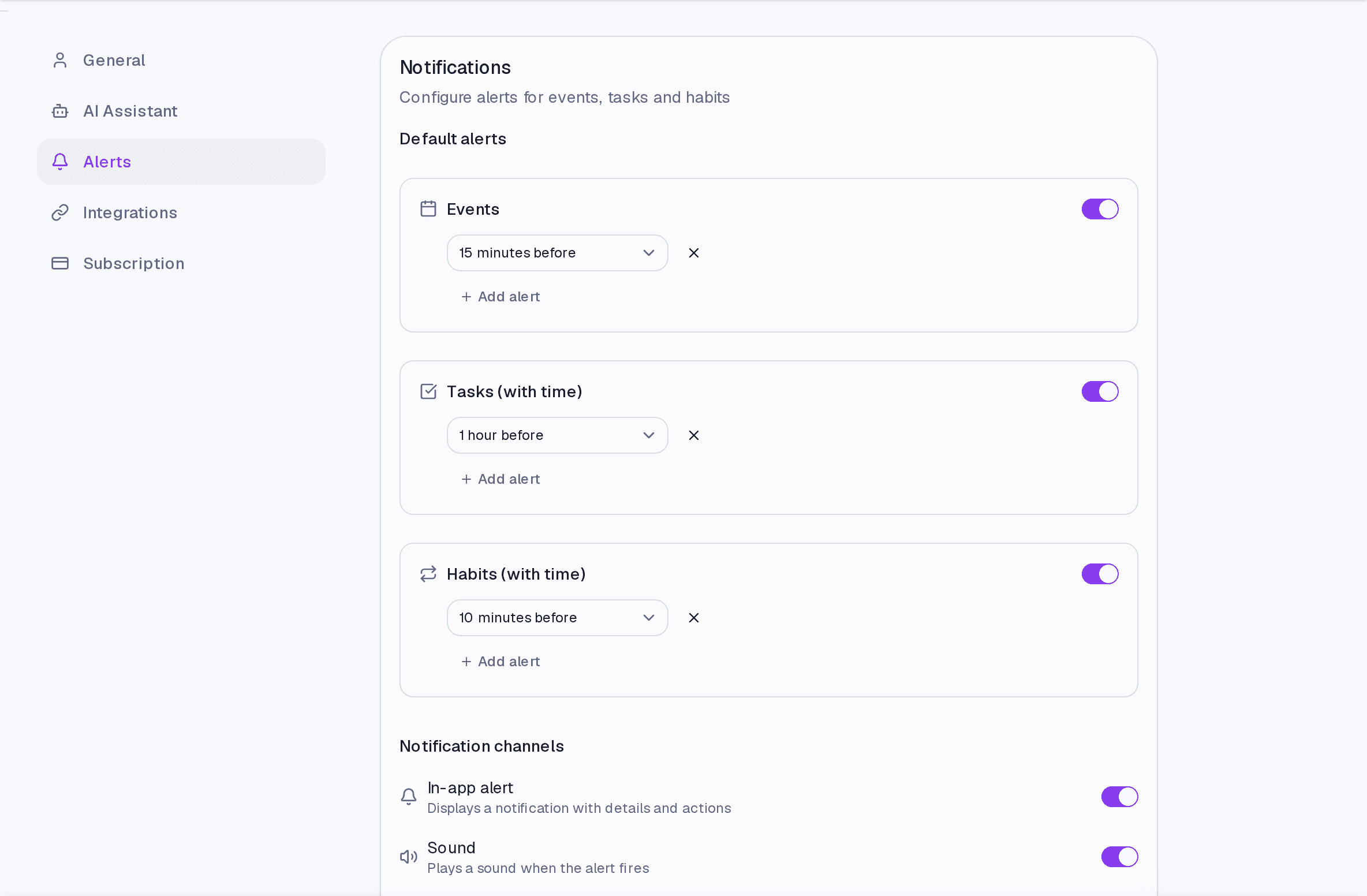
Default alerts are configured per item type: Events, Tasks with a time, and Habits with a time. For each type you decide how far in advance to be told, and you can have more than one alert — a day before and fifteen minutes before, for instance.
Configuring
- Go to Settings → Alerts.
- Under Default alerts, adjust the lead times for each item type.
- Under Notification channels, turn on the in-app alert, the sound, and push.
Turning push on
Click Enable push and accept the browser permission. If it says Permission blocked, the block is in the browser, not in DayAlly — you have to allow notifications for the site in its settings.
Where it lives
Settings → Alerts. The bell at the top of any screen shows recent alerts.
Common questions
A specific item with a different reminder? Yes. When editing a task, an event, or a habit, you can override the alert for that item alone.
I turned push on and nothing arrives on my phone. Turn push on from the phone, not from the computer: the permission is per browser and per device. Installing the app on your home screen makes delivery more reliable.
I get too many alerts. Reduce the number of default alerts before turning channels off. The excess usually comes from two or three alerts per item, not from the channel.
Updated on August 26, 2026