Tags
Cuts that cross categories and stack on the same task.
A tag is what a category cannot be: multiple. A task has one category and as many tags as make sense.
It is for the cut that crosses areas. "Urgent-for-Ana", "needs-internet", "trip-october" — things that show up in Work and Personal at once, and therefore would never fit in a category.
Creating one
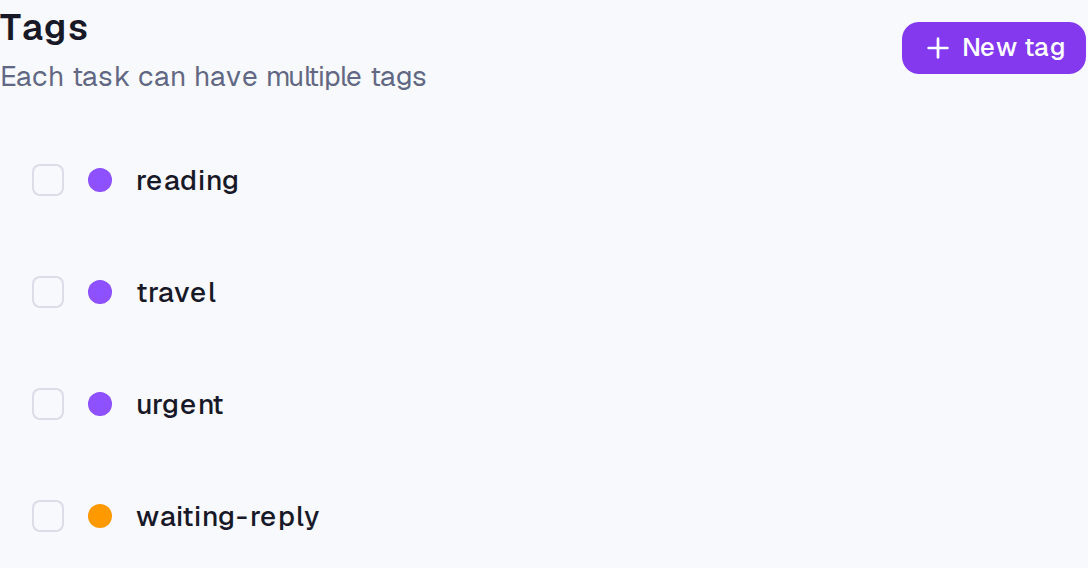
- Open the Categories screen and go to the Tags block.
- Click New tag.
- Give it a name and pick a colour.
In a task's form, the Tags field also creates on the spot, without leaving.
When a tag is the right answer
Three signs that what you want is a tag, not a category or a section:
- You caught yourself wanting to mark the same task two ways.
- The cut is temporary — a project, a trip, a month.
- The cut describes a condition ("no rush", "waiting on someone else"), not an area and not a stage.
Where it lives
The Categories screen, Tags block. Tags show in the Tasks screen filters and in search.
Connected calendars also accept default tags: every event imported from that calendar arrives already marked.
Limits and plans
Tags are in any paid plan, up to 500 per account.
Common questions
How many tags can a task carry? There is no practical limit. But a task with six tags usually means none of them is filtering anything.
Does renaming a tag break anything? No. The link is to the tag, not to its text.
Can I delete several at once? Yes — select them and use Delete. The confirmation differs from the single one; see the article next door.
Updated on August 26, 2026