Deleting without losing data
Deleting a category or tag deletes no task — and the confirmation exists for a reason.
The question that stops everyone before clicking: if I delete this category, do I lose its tasks?
No. Deleting a category or a tag unlinks it — the tasks keep existing, they simply lose that classification. A task without a category shows as No category and carries on as normal.
Deleting
- On the Categories screen, find the item and click the delete icon.
- Type the name to confirm.
- Confirm with Delete.
To delete several at once, select them and use Delete. Then the confirmation changes: instead of the name, you type DELETE.
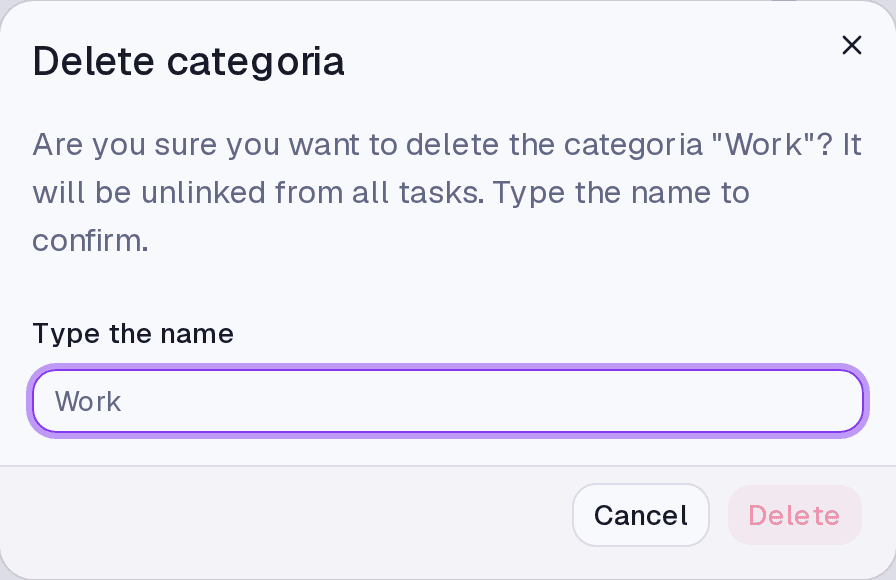
Why type the name
Because the action is silent. Deleting a category shows nothing broken on the next screen — the tasks are still there, colourless, and you may take days to notice you lost the classification on two hundred items. Typing the name makes sure you are deleting that item and not the one below it.
What has no way back
Deleted categories and tags do not go to a bin: there is no restore. Recreating a category with the same name and colour does not bring the links back — the tasks stay without a category, and you would have to reclassify them one by one.
That is different from tasks, which are archived and can return.
Where it lives
The Categories screen. Deleting tasks lives elsewhere and follows a different rule.
Limits and plans
With no active plan the account is read-only: nothing can be deleted — not categories, not tags, not tasks.
Common questions
I deleted a category by mistake. Now what? Recreate it and reclassify the affected tasks. Filtering by No category on the Tasks screen helps you find the orphans.
Does deleting a tag delete the tasks marked with it? No. It only removes the marking.
What if the category is a calendar's default? That calendar stops applying a category to new events. Events already imported simply end up without one.
Updated on August 26, 2026