Choosing what shows on the calendar
Filter by calendar, type, category, and tag — without deleting anything.
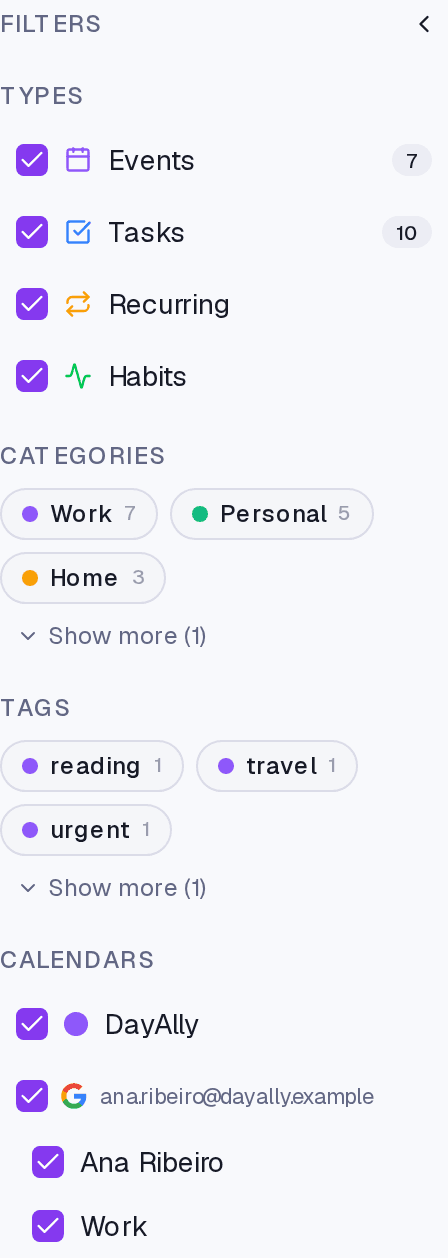
With two or three accounts connected, the calendar fills up fast. The Filters sidebar solves that without deleting anything: it controls what you see, not what exists.
What you can filter
Types — Events, Tasks, Recurring, and Habits. Turning off Habits and Recurring is the most common adjustment: they repeat every day and can bury the one-off things.
Calendars — every calendar from every connected account. This is where you drop that holidays calendar you never wanted to see.
Each account has its own checkbox, on the email row: it shows or hides all of that account's calendars at once, with no need to click each one. When some of them are hidden, a counter appears beside it — 1/2, for instance — and the next click brings them all back.
Categories and Tags — the same cuts you already use on tasks.
How to use it
- On the Calendar, open Filters.
- Tick and untick what you want to see. For a whole account, use the checkbox on the email row.
- To go back to the full view, use Clear filters.
When a section holds many items, Show more opens the full list.
Where it lives
The Calendar screen, behind Open filters. It is different from disconnecting an account in Settings → Integrations: filtering hides, disconnecting removes the events.
Common questions
Is the filter remembered? Yes, while you are using the screen.
I hid a calendar. Does it stop syncing? No. It keeps being imported and updated; you just do not see it. To stop importing it, untick the calendar on the connection, under Settings → Integrations.
Can I give each calendar a different colour? The colour comes from the category. Set a default category per connected calendar and each one gets its colour.
Updated on September 01, 2026